How to create multiple Google accounts
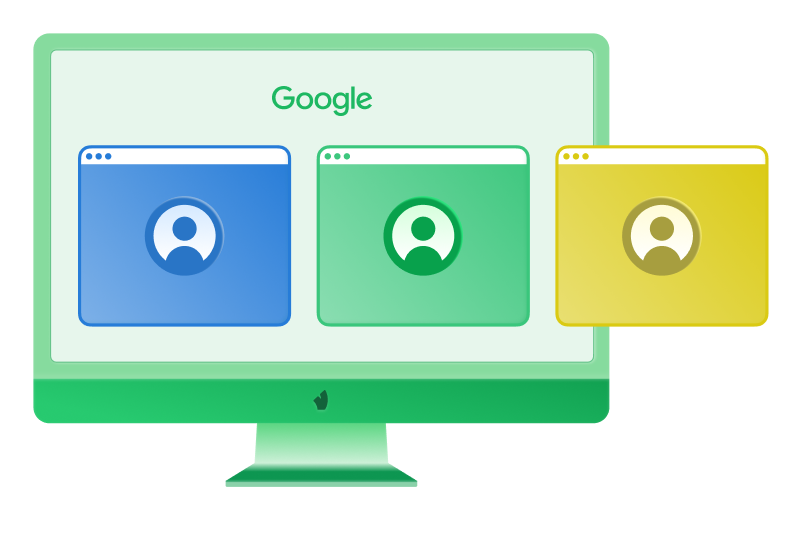
Having multiple Google accounts is useful when one login is not enough for work. You may need to run client projects, manage several brands, work with Google Ads, test services, do outreach, or keep team access separate from personal activity. The goal is to keep every workflow clear, properly authorized, and easy to manage.
Before you start creating accounts, define the purpose of each one. A clear purpose saves time later and helps your team.
Follow this basic flow for each new Google account:
- 1.Create a separate Vision profile for the project.
- 2.Name the profile before you use it.
- 3.Add a stable proxy.
- 4.Set the profile language and timezone to match your usual working context.
- 5.Open the Google sign-up page inside that profile.
- 6.Create the account with accurate information.
- 7.Save recovery details and project notes.
For stable work, each Google account should run in a separate browser profile with a unique browser fingerprint, a protected WebRTC configuration, and isolated cookies, local storage, and session data. Keep these parameters consistent after you create the account to avoid sudden changes between logins and keep behavior predictable. New accounts also need normal, policy-compliant use. Set up the account, confirm access to recovery options, and use it for the real task it was created for.
Keep Google accounts separate
Google account management gets messy when every login lives in the same browser environment. Opening several accounts in one Chrome profile may save a few minutes, but the cost shows up later.
Common mistakes often look small at first:
Insufficient isolation between accounts. Overlapping fingerprint signals, such as browser settings, screen resolution, fonts, language, and hardware data, can make accounts easier to link.
Reusing the same password across unrelated accounts. One compromised password can put access to several accounts at risk at once. The impact is greater when those accounts belong to different clients or projects.
Using one recovery email for every client project. If access to it is lost or restricted, several client accounts can be affected at the same time.
Sharing account passwords in chats or open spreadsheets. Credentials can be copied, forwarded, or seen by people who should not have access.
Switching between profiles without clear names. These mistakes can lead to data saved in the wrong place, incorrect settings, or actions taken under the wrong identity.
Opening client accounts on random devices. This can trigger extra login checks, verification requests, or temporary access restrictions.
Changing location without a work reason. Repeated jumps between countries or cities can draw more attention from security systems.
Starting heavy activity right after sign-up. This can look unusual and increase the chance of restrictions.
These mistakes can cause accounts to become technically linked, trigger extra security checks, or, in more serious cases, lead to temporary restrictions or account suspension. That is why proper separation makes client work safer, easier to audit, and simpler to recover when something goes wrong.
The services behind your Google account
A Google account is the identity you use to sign in to services such as Gmail, Drive, Calendar, and YouTube. Gmail is only one of these services: you can create a Google account with any existing email address.
Before you create multiple Google accounts for work, decide who should control them. Personal accounts are managed by the users themselves, even when they are used for business. Accounts managed by an organization, such as Google Workspace user accounts, follow organizational policies. Administrators with the right permissions can reset passwords, suspend users, and manage access.
It is also important to separate the login from the resources it accesses and the browser profile used to open it.
Layer | Purpose |
|---|
Google account | Identifies the user who signs in |
Google service resource | Stores project data with its own access permissions |
Vision profile | Provides the browser workspace used to access the account |
Several people can access the same Google Ads account through their individual Google accounts. So a new campaign does not automatically require another login. Create additional accounts when you need separate identities or independent administrative control.
For client projects, agree on who controls the login, handles recovery, and keeps administrative access after the engagement ends. We recommend keeping client resources under the client’s administration and giving your team permissions that match their tasks.
Vision supports this structure with client folders and profile access permissions. These permissions determine who can open browser profiles, while Google permissions determine what the signed-in user can do.
Track account workflows in Vision
Creating accounts is only the first step. When several projects are in progress, you need to know which account is ready for work, which one needs attention, and what happened during the last session.
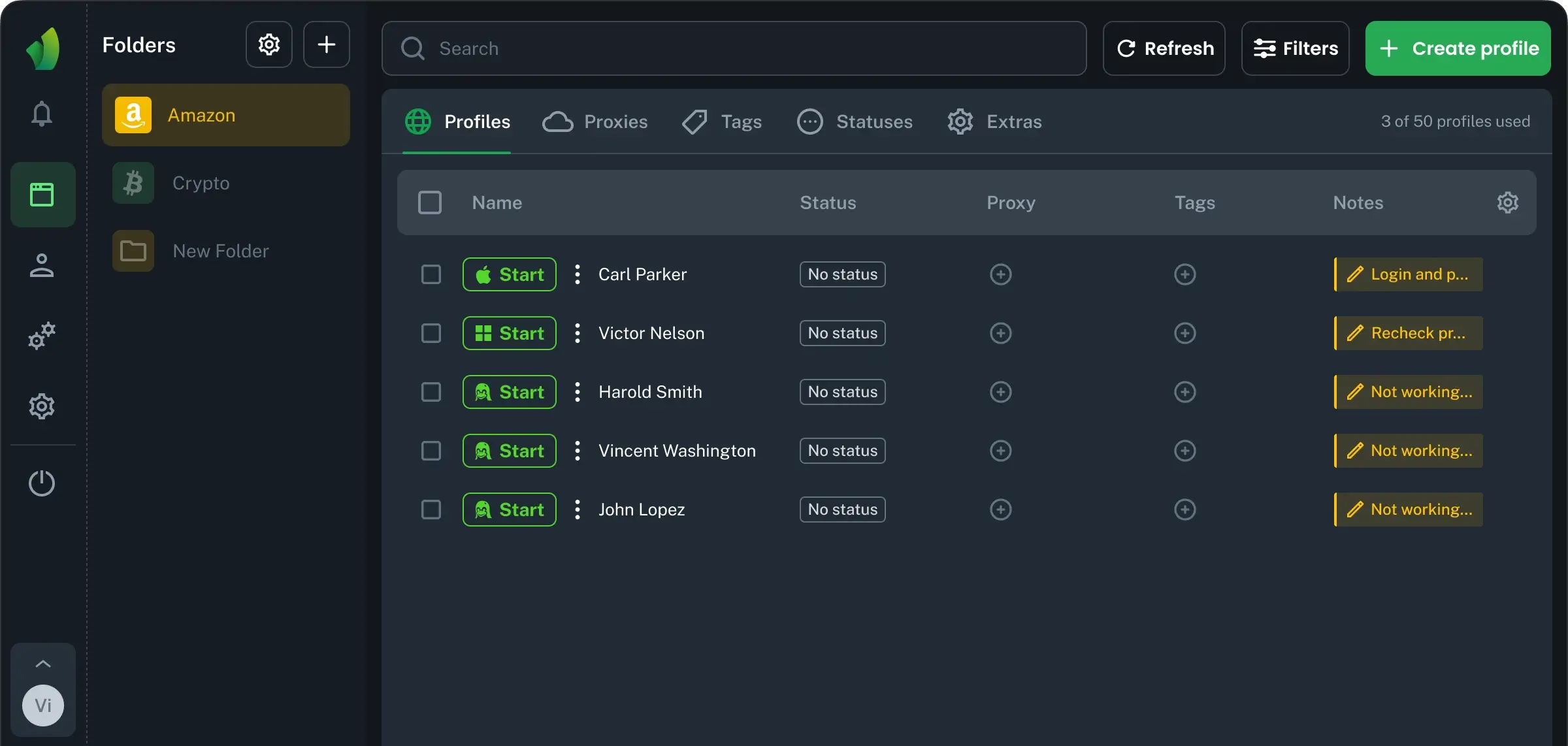
Use Vision to keep this context next to each browser profile:
Tags help categorize profiles by task or workflow.
Statuses help track progress in your team’s process.
Notes record the last action, an open issue, or the next step.
For example, if a Google account asks for verification, leave a note explaining what appeared and what the account owner needs to do. The next team member can then pick up the task without digging through chat history.
Keep these records up to date. They reflect updates made by your team, not an automatic check of the account’s status with Google. Never add passwords or backup codes to project notes.