Create multiple Gmail accounts safely
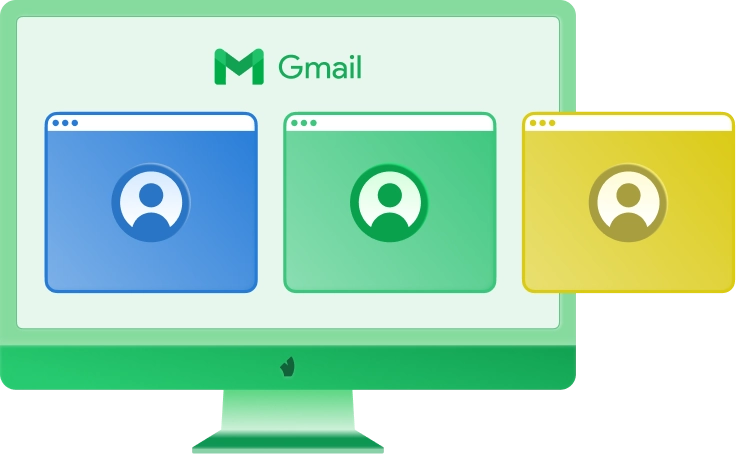
For work, Gmail accounts need clean borders. One inbox for outreach, one for a client, one for tests — each should look like a separate user, not a pile of logins from the same browser. The basic rule is simple: one account, one profile. The antidetect browser Vision helps keep profiles apart, with separate sessions, fingerprints, proxy settings, and storage. It will not make accounts untouchable, but it helps reduce obvious links and keeps daily work calmer.
Basic flow:
- 1.Create a separate profile in browser Vision.
- 2.Add a clean proxy to this profile.
- 3.Match timezone and language to the proxy location.
- 4.Open Gmail signup inside the profile.
- 5.Create the account.
- 6.Save recovery details and account notes.
- 7.Warm up the account slowly before heavier use.
Why Gmail flags accounts
Gmail links accounts by signals, not just by email addresses. Same IP, browser data, cookies, timezone, behavior — all of this can point to one source. If several accounts are created or used from one Chrome setup, Gmail may treat them as connected. That is why multiple login needs separation. Running multiple accounts in Gmail from one messy environment can save time today and create problems tomorrow. A cleaner setup gives each profile its own space, so every account has fewer obvious ties to the others.
Most flags come from repeated patterns. They look small alone, but together they create a clear fingerprint.
Common mistakes:
Creating accounts too fast. A batch of fresh accounts made in the same rhythm looks automated.
Using the same recovery email. Shared recovery data can connect profiles that should stay separate.
Logging into all accounts from one browser. Several Gmail accounts in one environment often look like one user with many masks.
Changing locations too often. Jumping between countries or cities can trigger extra checks.
Starting heavy activity too soon. A fresh inbox needs warmup before outreach, registrations, or high-volume tasks.
Use separate profiles for Gmail
Separate profiles make daily work cleaner. Instead of logging out, clearing tabs, or guessing which inbox is open, you launch the right profile in browser Vision and continue from there.
Each Gmail account keeps its own workspace, so projects do not bleed into each other. Cookies, cache, local storage, and sessions stay inside that profile’s isolated environment. Data from one profile does not spill into another.
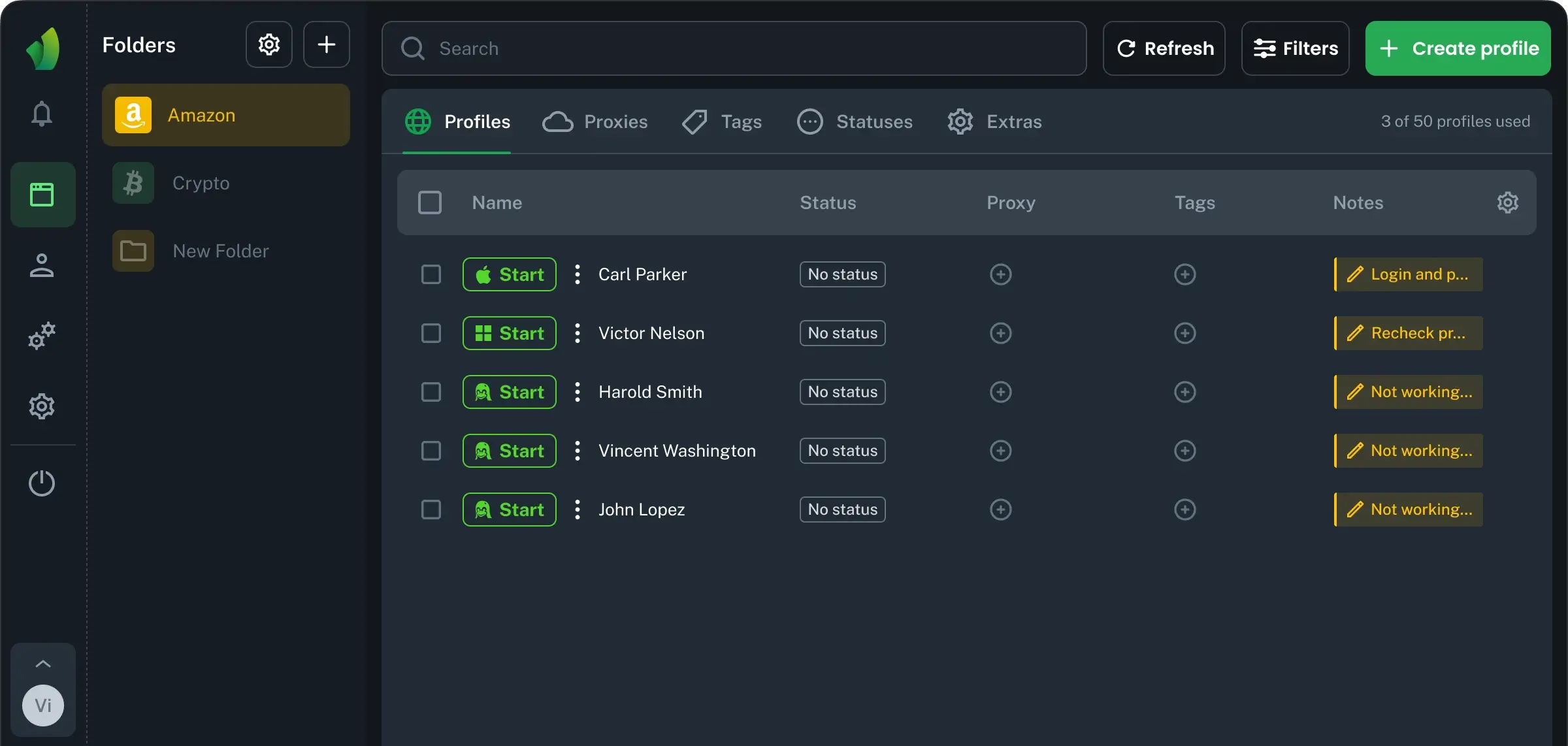
This helps avoid accidental overlaps when you switch between accounts during the day. It is useful when you manage several Gmail accounts for clients, outreach, testing, or support. For example, one profile can be used for a marketing campaign, another can be assigned to client support, and a third can be used for app testing. You can name profiles by project, geo, status, or owner, and find the right one in seconds. The result is a calmer workflow where every inbox has its own place.
Set up proxies for Gmail accounts
A proxy is not just a “different IP.” For Gmail work, it is part of the account’s identity. If the proxy is weak, overused, or shared by too many people, the whole setup becomes fragile. That is why a good Gmail proxy setup starts with clean residential or mobile proxies. They look closer to normal user traffic and usually work better for long-term account activity. Cheap shared IPs can already carry bad history, even if your profile is new. In browser Vision, assign one proxy to the profile before you start using the account. Keep the location logical and consistent with the profile settings. If the account works from Spain today, Canada tomorrow, and Poland an hour later, it can trigger extra checks.
Quick warning: do not rotate proxies too often. Use reliable proxies for Gmail accounts, keep sessions steady, and change IP only when there is a clear reason. This gives multiple Gmail accounts a stronger base for daily work.
Reduce repeated Gmail login checks
Extra Gmail checks usually appear when the account stops looking familiar. They are usually a sign that the account has not built enough trust yet, or that its usual pattern suddenly changed. This can include QR verification during signup, where Google asks for confirmation from an already trusted device. You cannot fully force Gmail to skip this step, and it is better not to fight security checks directly.
The smarter goal is to reduce the signals that make Gmail ask for them too often. Keep the same profile, use a stable proxy, save cookies, and avoid sudden changes in language, region, or login rhythm. Stable Gmail sessions help the account look less like a new device every time it opens. This matters even more when you use Gmail multiple login for daily work across several profiles. New accounts also need a soft start: add recovery details, check settings, send a few normal emails, and wait between actions.
Organize multiple Gmail accounts
Creation is only the first step. The real work starts when you need to manage multiple Gmail accounts every day without losing context. Clear profile names save more time than they seem to. Use labels that show project, geo, status, owner, and purpose at a glance. A name like “Client A — FR — Warming — Anna” is much better than “Gmail 14.” It tells the team what the account is for before anyone opens it.
Status tracking matters too. Mark accounts as fresh, warming, active, limited, recovery, or paused. This helps you avoid using a new inbox too early or touching a paused one by mistake. Keep recovery details in the profile notes: recovery email, phone status, 2FA status, backup codes, date created, and project owner. Avoid storing passwords in open notes or team chats. Use a safer password workflow, so one mistake does not expose every account. A small routine keeps the workspace clean and makes it easier to manage Gmail accounts when the number grows.
Control team access to Gmail
Team work gets risky when Gmail access lives in chats, spreadsheets, and personal browsers. One person opens an account from a laptop, another uses a VPS, and someone else tries to fix a login issue from home. After a few days, it becomes hard to tell who owns the profile, which session is stable, and why another check appeared.
With browser Vision, your team works through shared Gmail profiles instead of recreating the setup every time. A setup specialist can prepare new accounts, a media buyer can use them for ad workflows, an outreach manager can handle several email addresses, and a team lead can control access. Each role gets only what it needs. That keeps daily work cleaner when one team has to manage Gmail accounts across different clients, campaigns, or markets.
Vision is not just an app that helps open more than one Gmail login. It gives the team one controlled place for profiles, sessions, roles, notes, and handoffs. No random devices, no scattered passwords, no guessing who touched the account last. When access is organized, several Gmail accounts become easier to run without turning the workflow into a mess.
Scale Gmail better with Vision
Managing several Gmail accounts is easy only while the setup is small. Once accounts, clients, markets, and team members start growing, a regular browser becomes a weak point. The real issue is how cleanly each account is separated from the others.
The antidetect browser Vision gives every Gmail profile its own working identity. Each profile can have separate browser data, its own fingerprint settings, a dedicated proxy, saved sessions, notes, and access rules. So instead of treating all accounts like tabs in one crowded window, Vision turns them into separate workspaces. This helps reduce obvious overlaps and keeps daily management more predictable.
For solo work, it means faster switching and fewer manual mistakes. For teams, it means clearer ownership, safer handoffs, and less password chaos. A media buyer, support manager, outreach specialist, or team lead can work with the right profile without rebuilding the setup from scratch. Sessions stay saved, so the workflow does not start from zero every morning. Proxy settings stay tied to the profile, so accounts do not jump between random locations without reason. Fingerprint control adds another layer of consistency that Chrome, incognito mode, or a simple VPN cannot provide.