How to create and manage multiple YouTube channels
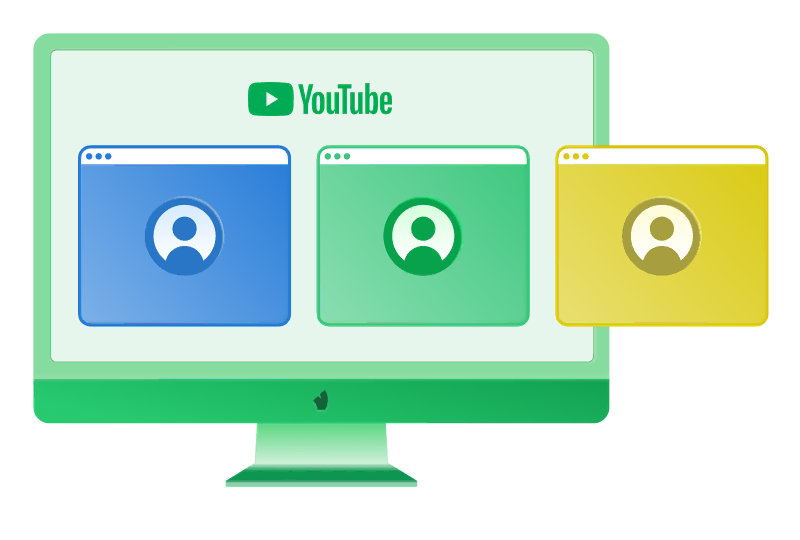
If you are wondering “Can I have more than one YouTube channel?”, the answer is yes. YouTube officially lets you create up to 100 channels under one Google Account. With a single Google login, you can manage separate channels without mixing names, branding, content, and analytics. Still, that does not mean every project should be tied to the same Google identity. If any part of that structure gets flagged, the connection between channels can become a problem.
Before managing multiple YouTube channels, it helps to distinguish the key elements:
Item | What it is | Why it matters |
|---|
Google Account | The account used to access YouTube, Gmail, Ads, and other Google services. | Gives access to YouTube and account settings. |
YouTube channel | The public identity used to publish videos and build an audience. | Separates content, branding, and analytics. |
Brand Account | A type of channel that can be managed by several Google Accounts. | Useful for teams and client projects. |
Vision browser profile | An isolated browsing environment with its own cookies, fingerprint, proxy, and session. | Adds a layer of isolation between profiles in daily account work. |
Official tools vs. multiple YouTube account management in practice
The Google and YouTube ecosystem offers several official management options:
YouTube Studio — the official dashboard for channel management, publishing, analytics, comments, and monetization settings.
Brand Accounts and channel permissions — YouTube features for managing channel ownership and team access.
Google Workspace — Google’s business suite for email, Drive, file sharing, access management, and team collaboration.
In practice, you still run into limitations:
you have to switch between accounts and sessions;
Google can link activity performed in the same browser environment;
several team members working in the same environment can trigger security alerts;
it is hard to keep channels fully separate.
So YouTube Studio, Brand Accounts, and Google Workspace help with official channel management. But they do not solve the main challenge of multi-account work: running several YouTube channels at the same time without mixing sessions and identities.
Reasons to use multiple YouTube channels
Multiple channels help separate projects and avoid mixing audiences, analytics, and team access permissions. For marketers, agencies, e-commerce teams, and media buyers, this often makes more sense than putting everything on one channel.
They are especially useful for:
Professional bloggers and content creators separating different content formats.
Companies and brands splitting channels by product, market, or audience.
Online schools and educators separating courses, skill levels, or languages.
Agencies and social media marketing teams managing different YouTube accounts for different clients without mixing access, analytics, and content plans.
E-commerce brands creating separate channels for product reviews, tutorials, local markets, or customer support content.
Affiliates and media buyers testing creatives, niches, and geos without putting the main channel at risk or confusing the audience.
How to create multiple YouTube channels
Basic step-by-step:
- 1.Create a Google Account or sign in to an existing one.
- 2.Open YouTube settings.
- 3.Select “Create a new channel”.
- 4.Add a name, handle, avatar, banner, and description.
- 5.Set up links, country, and basic branding elements.
- 6.Prepare content before you start uploading videos in bulk.
If you plan to create multiple YouTube accounts, avoid copying and pasting the same settings. Do not repeat the same design, description, links, and upload pattern across all channels.
Key risks when scaling
YouTube can link accounts through recurring signals:
the same browser cookies and device fingerprint;
the same IP or an unstable proxy;
identical channel design;
copied descriptions and links;
repeated video upload patterns;
shared recovery data;
careless team logins from the same browser.
If these signals repeat across accounts, YouTube may group your channels together and start applying limits, checks, or temporary restrictions. In more serious cases, one flagged channel can affect the whole group, leading to monetization reviews, upload restrictions, or even account bans.
The best setup for multiple YouTube channels
The safest way to work with many channels is to keep each account’s environment separate. The Vision browser brings your workflow closer to the normal behavior of a real user: each account runs in its own stable profile instead of several different channels being opened in the same browser with the same cookies and device signals.
Follow a simple system:
one account per Vision profile;
one stable proxy per profile;
clear names;
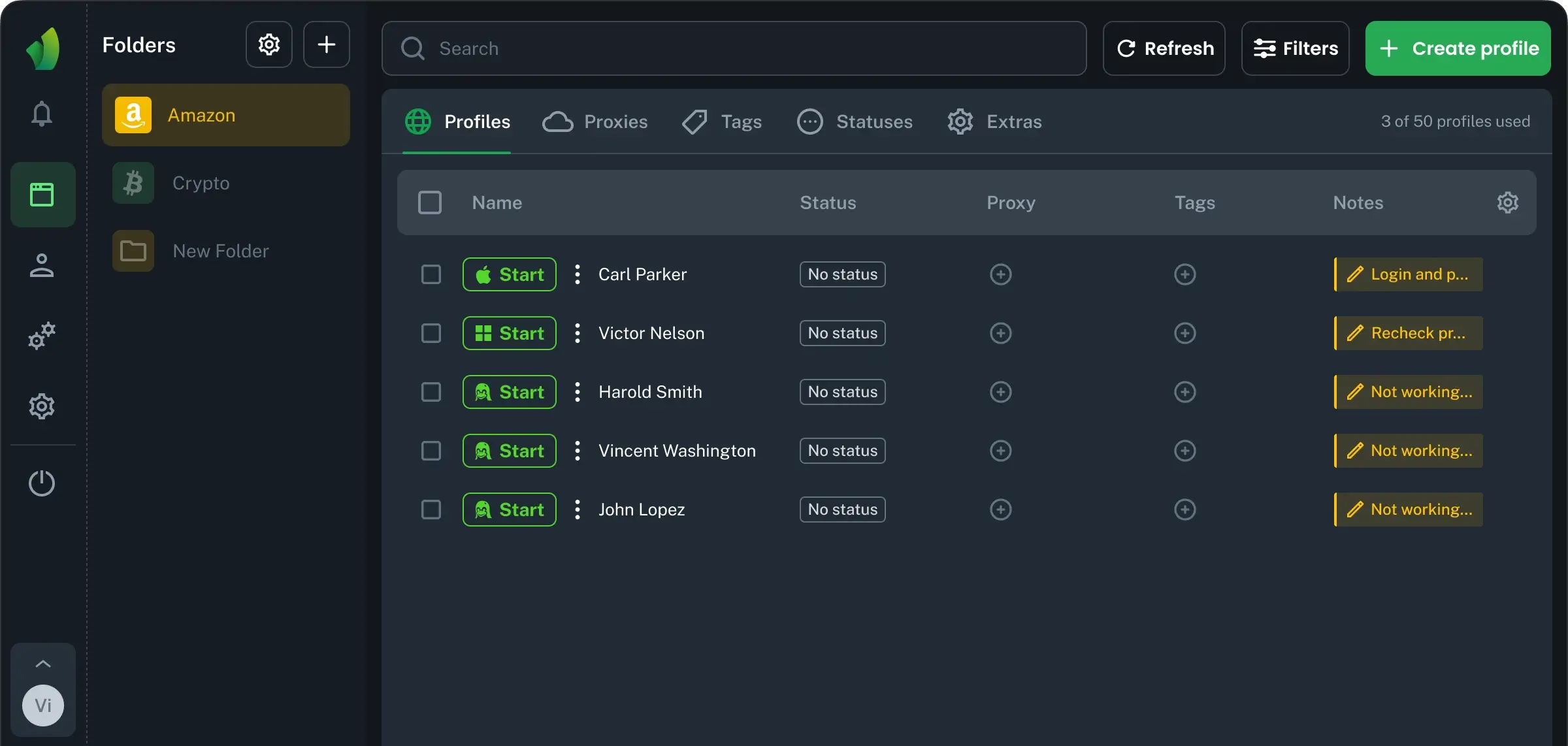
notes with email, niche, owner, and status;
unique branding for each channel;
separate cookies and sessions;
role-based access limits;
no bulk uploads of identical content;
no careless team logins from the same browser.
The Vision browser helps teams manage different YouTube accounts from one dashboard, keep client projects separate, match each profile with the right proxy, and reduce mistakes when uploading videos or working with accounts.